Themes
Regenerator 2000 ships with 9 built-in color themes. You can switch between them in File → Settings (Alt+P or Ctrl+,) under the Theme option.
Available Themes
The default theme. A dark theme with vibrant accent colors (purple, pink, cyan). Popular across many editors.
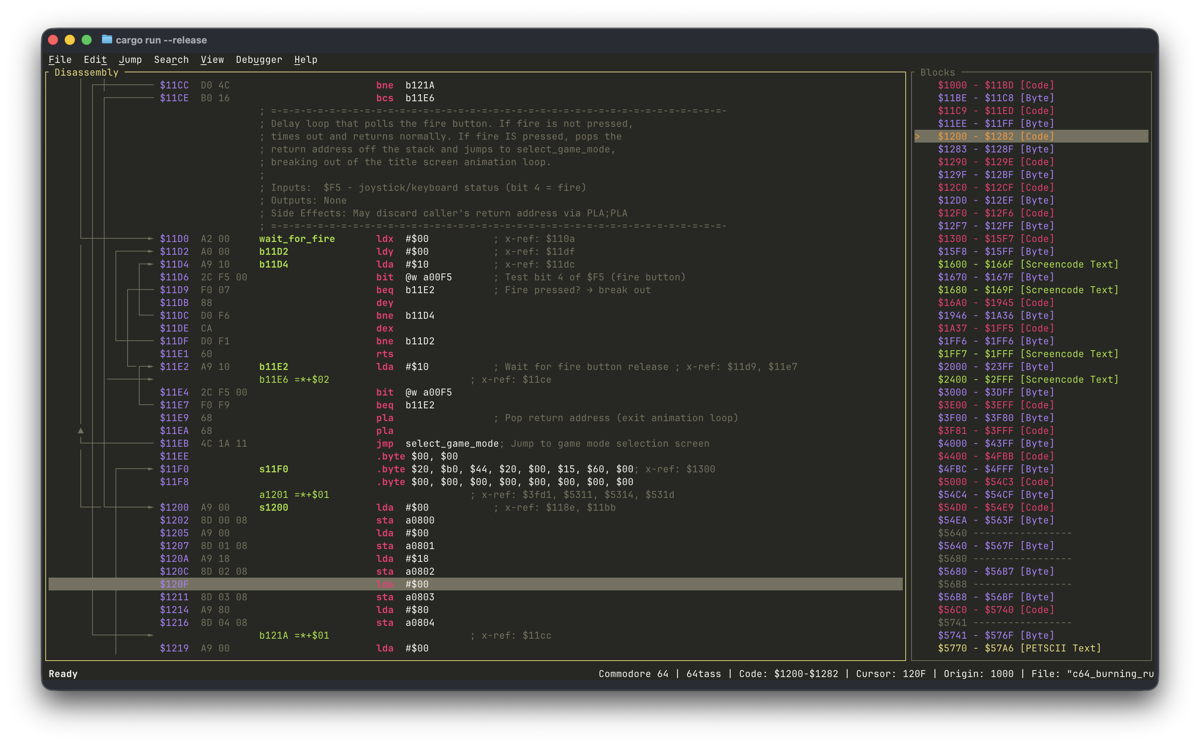
A popular low-contrast dark palette by Ethan Schoonover. Easy on the eyes for long sessions.
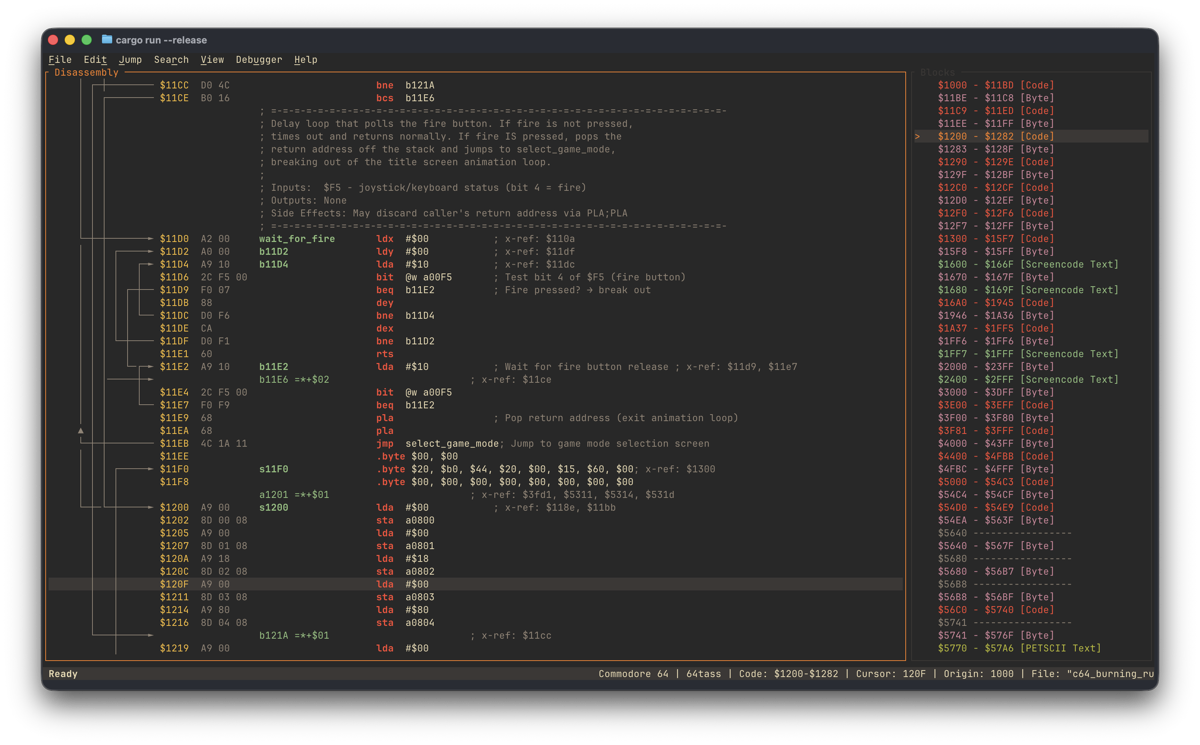
The light variant of Solarized. Good for bright environments or high-ambient-light setups.
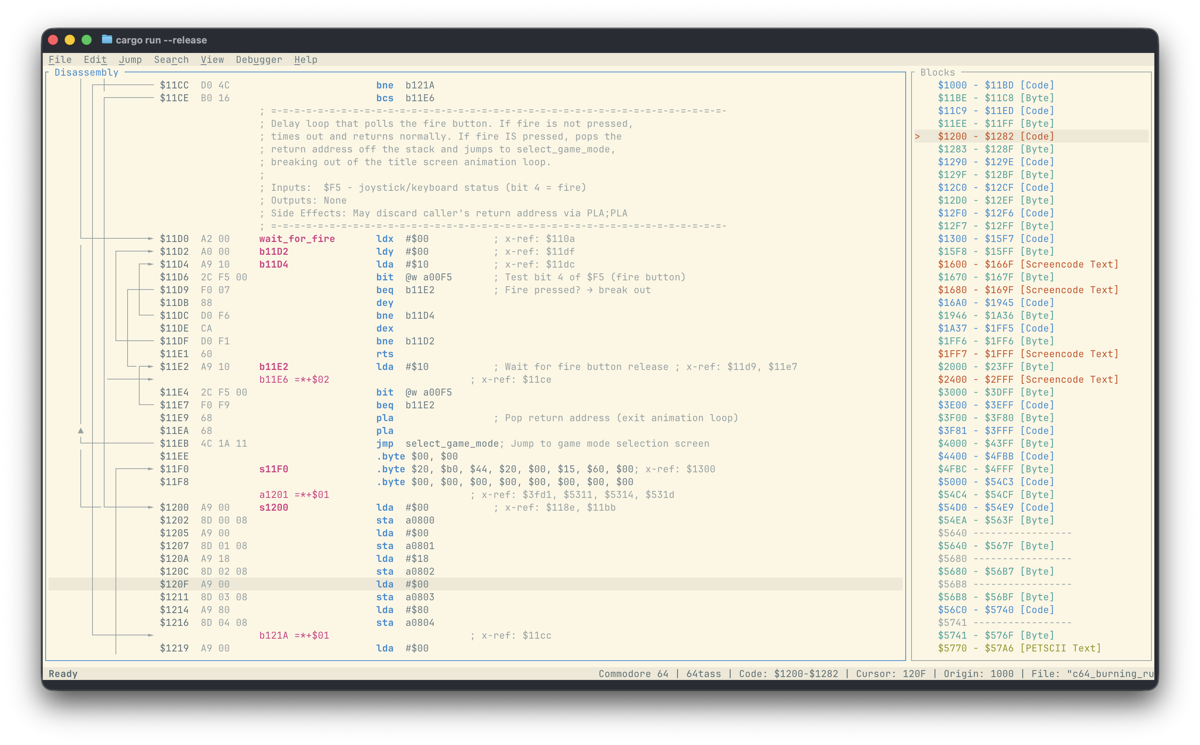
A retro-groove color scheme with warm, earthy tones (orange, yellow, aqua).
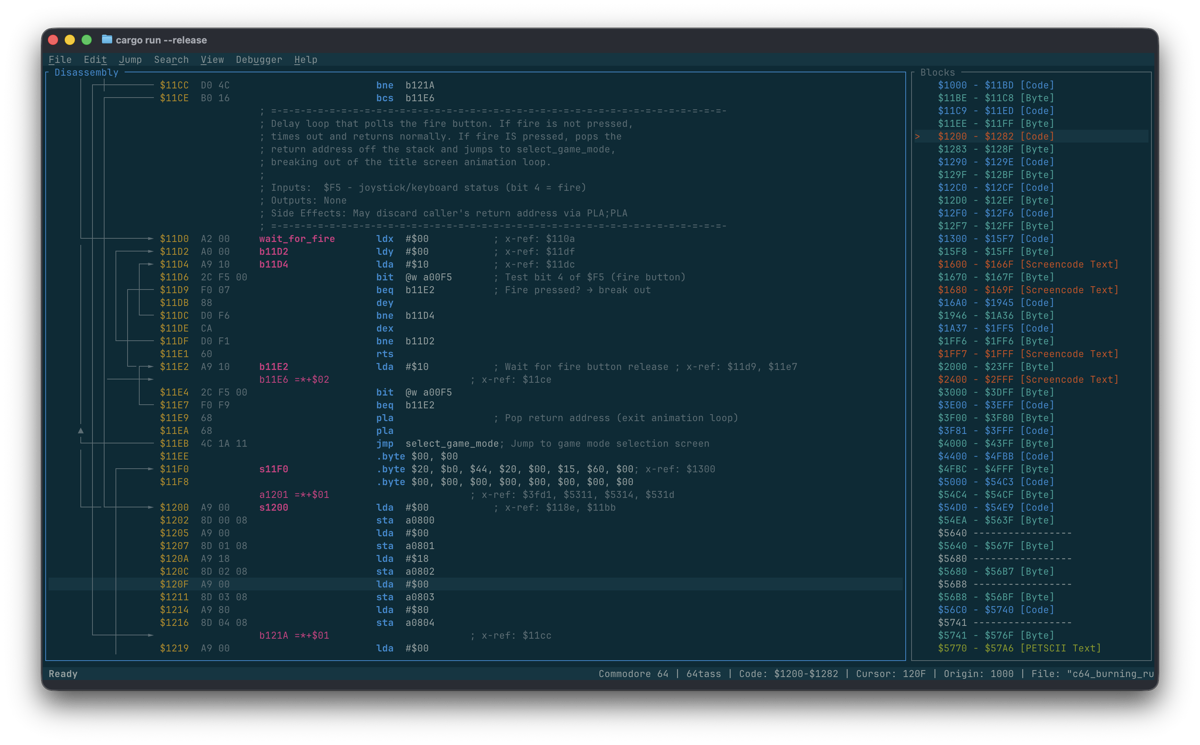
The light variant of Gruvbox. A warm, creamy background with the same earthy accent colors. Great for bright environments.
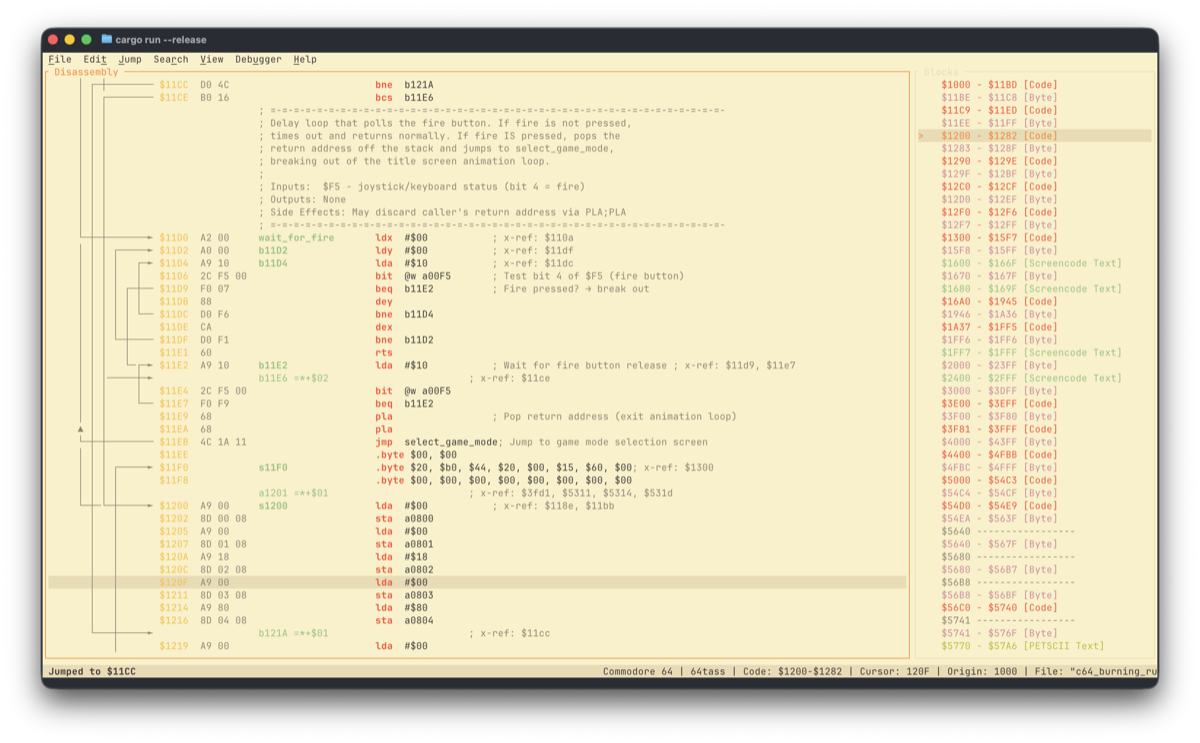
A classic dark theme with bold, saturated accent colors. Originally from Sublime Text.
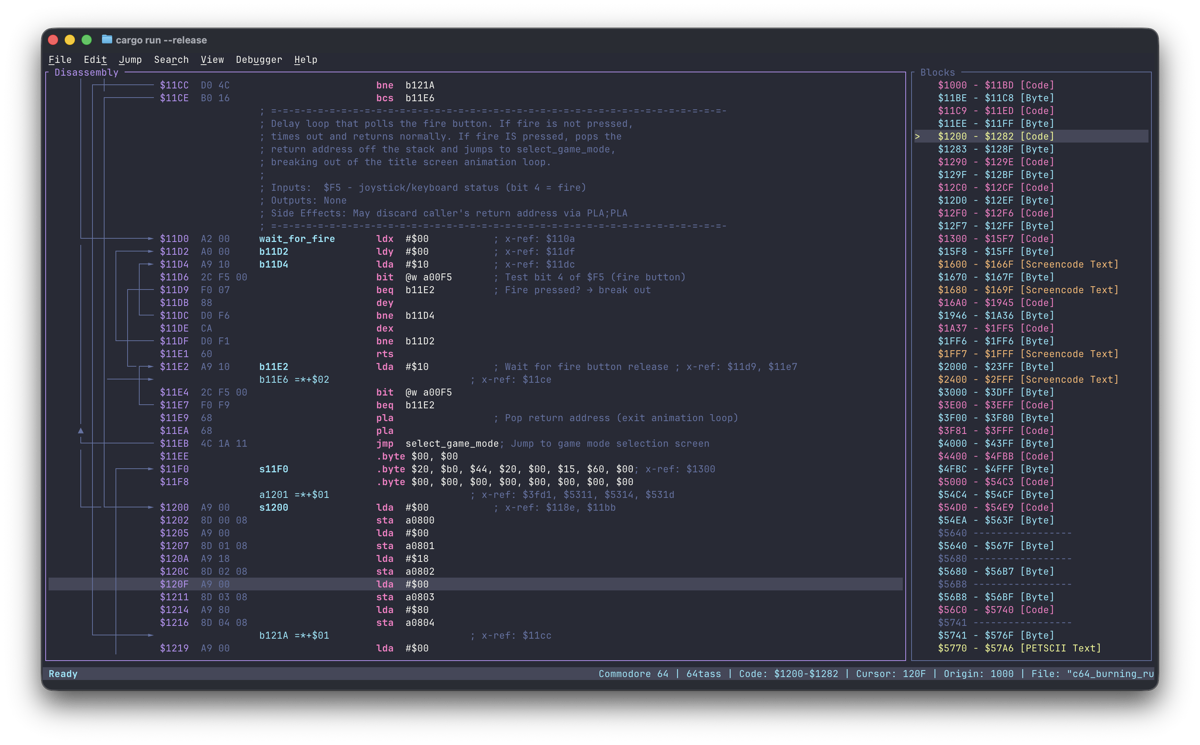
An arctic, north-bluish color palette. Low contrast with a cool, muted aesthetic inspired by the polar night.
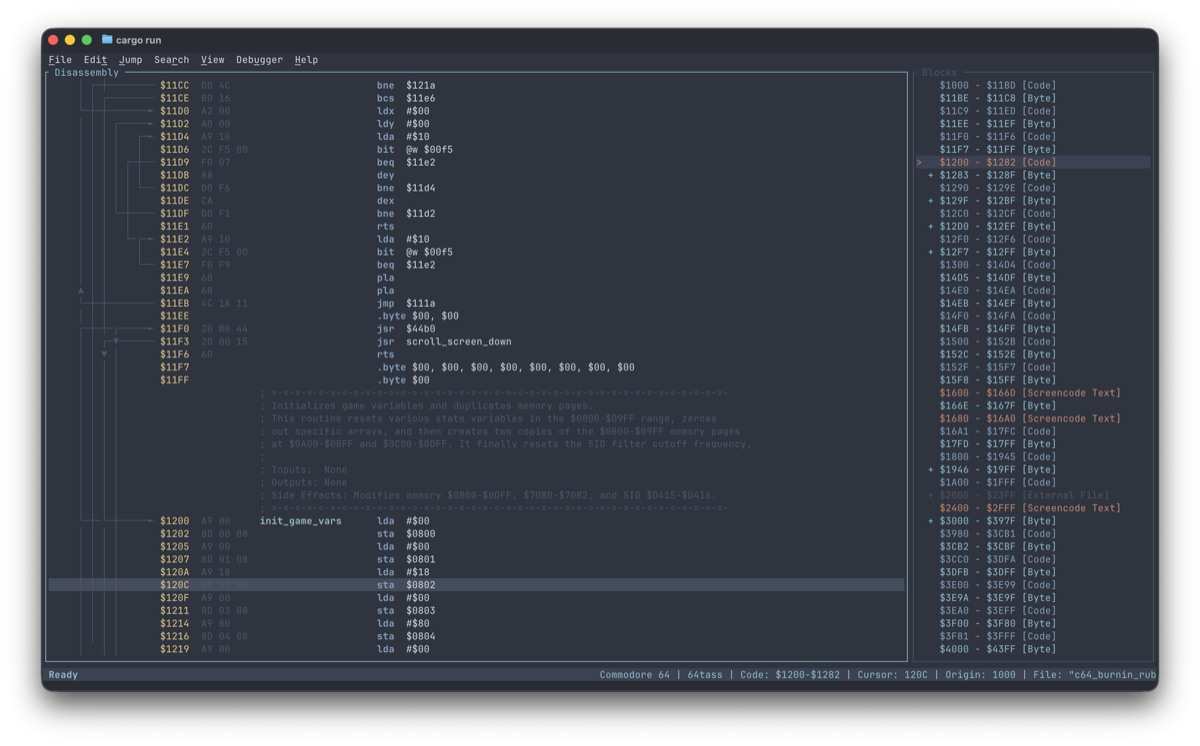
The darkest flavor of Catppuccin — a soothing pastel theme with warm tones on a deep background.
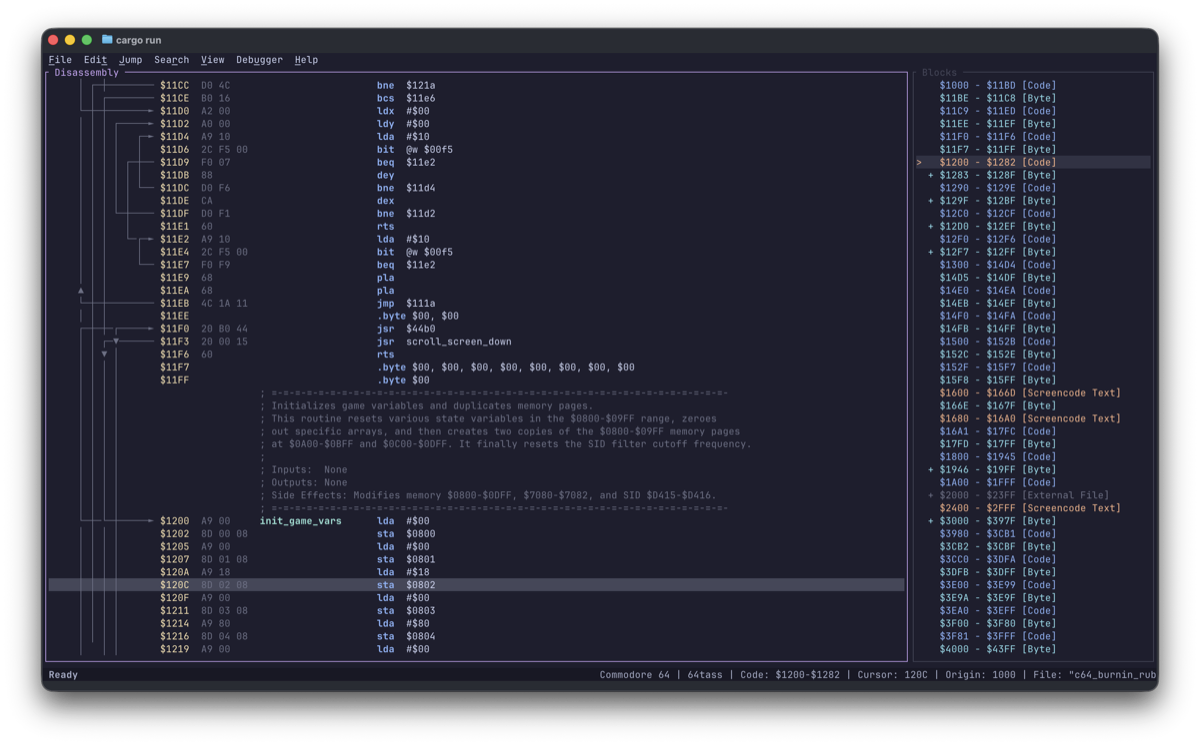
The light flavor of Catppuccin — pastel colors on a warm, creamy background. Great for daytime use.
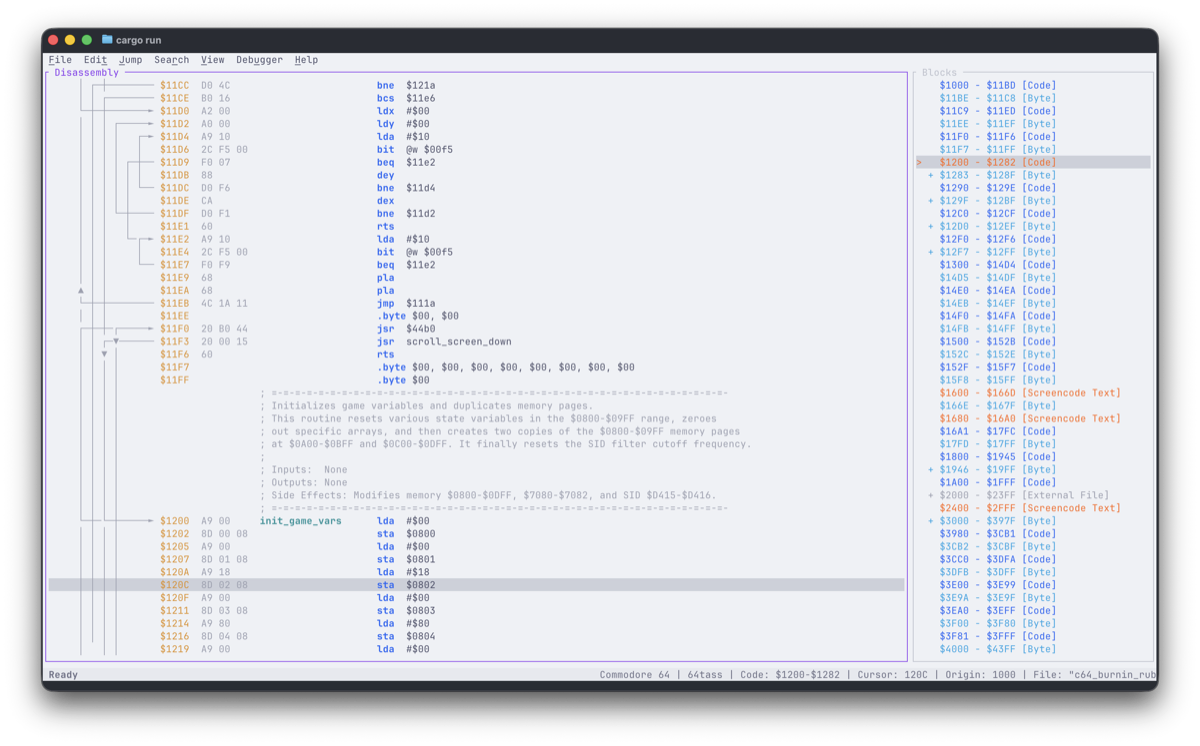
How to Change the Theme
- Open File → Settings (Alt+P or Ctrl+,).
- Navigate to the Theme option.
- You can change the theme in two ways:
- Press Left / Right to cycle through themes instantly (live preview).
- Press Enter to open the theme selector popup and pick from the full list.
- Choose a theme and press Enter.
The theme is saved globally and persists across sessions and projects.
Tip
All themes support true color (24-bit RGB). For the best visual experience, use a terminal with true color support. See the Recommended Terminals section.
Custom Themes
You can create your own themes or override any built-in theme by placing a theme-*.toml file in the
application config directory.
Config directory location
| Platform | Config directory |
|---|---|
| macOS | ~/Library/Application Support/regenerator2000/ |
| Linux | ~/.config/regenerator2000/ |
| Windows | C:\Users\<User>\AppData\Roaming\regenerator2000\config\ |
Getting started
The easiest way to create a custom theme is to start from the built-in files:
-
Dump all built-in themes to the config directory:
This writes every theme-*.toml to the destination folder and exits.
-
Edit an existing file or create a new one (e.g.
theme-green_screen.toml): -
Launch Regenerator 2000 — your custom theme appears in Settings → Theme.
How it works
- Theme files must be named
theme-<name>.toml(e.g.theme-green_screen.toml). - The
namefield is the display name shown in the theme selector. - The optional
basefield names a built-in theme to inherit from. Any color field you omit is filled in from the base (defaults to"Solarized Dark"when not specified). - A custom theme with the same name as a built-in theme replaces the built-in.
- Colors use hex format:
"#RRGGBB".
Tip
Partial themes are the recommended approach — only override the colors you care about and inherit the rest from a base theme. This makes your theme file short and easy to maintain.
TOML schema reference
Every theme-*.toml file has the following top-level keys:
| Field | Type | Description |
|---|---|---|
name |
string | Required. Display name shown in the theme selector. Must be unique. |
base |
string | Optional. Name of a built-in theme to inherit from. Defaults to "Solarized Dark". |
| color fields | string | Optional. Hex color ("#RRGGBB"). See below for the full list. |
hex_color_palette |
array of strings | Optional. 18-entry array of hex colors for the Hex Dump palette. |
Color fields
All color fields accept hex strings in #RRGGBB format. Omitted fields inherit from the base theme.
Base colors: background, foreground, border_active, border_inactive, selection_bg,
selection_fg, block_selection_bg, block_selection_fg, status_bar_bg, status_bar_fg
Code / Disassembly: address, bytes, mnemonic, operand, label, label_def, comment,
arrow, collapsed_block, collapsed_block_bg
Hex View: hex_bytes, hex_ascii
UI Elements: dialog_bg, dialog_fg, dialog_border, menu_bg, menu_fg, menu_selected_bg,
menu_selected_fg, menu_disabled_fg, sprite_multicolor_1, sprite_multicolor_2,
charset_multicolor_1, charset_multicolor_2
Highlights: highlight_fg, highlight_bg, error_fg
Block Types (fg/bg): block_code_fg, block_code_bg, block_scope_fg, block_scope_bg,
block_data_byte_fg, block_data_byte_bg, block_data_word_fg, block_data_word_bg,
block_address_fg, block_address_bg, block_petscii_text_fg, block_petscii_text_bg,
block_screencode_text_fg, block_screencode_text_bg, block_lohi_fg, block_lohi_bg,
block_hilo_fg, block_hilo_bg, block_external_file_fg, block_external_file_bg,
block_undefined_fg, block_undefined_bg, block_splitter_fg, block_splitter_bg,
minimap_cursor_fg